Setting up a temporary team for a job (with automatic hour tracking)
Use this procedure when one or more members of your team are joining you to work on an assignment and need their labor hours registered.
The maximum number for this 'temporary team' is 10 (including yourself). You can only add people from your own team.
Procedure
1. Open the work assignment you want to work on with one or more team members.
2. Make sure the status is either: Accept, Work, Wait, Pause, Travel.
3. From the Time spent block go to the Labor hours details page.
4. Select the Teams button at the top of the page.
5. On the Manage team member(s) page, find and select the team member(s) joining you on this particular job.
You can select members from your own team from the list. To add an external team member, select the Add external button and enter the person's name and selecting Submit.
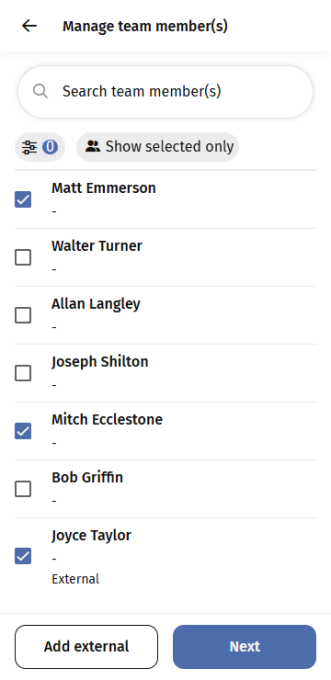
6. Tap Next.
7. Confirm the changes by tapping Submit.
◦ If the work assignment is in status Work, Wait, or Travel: Labor hours for each added team member start running automatically at the current date-time (action date-time). These running hours follow the same status-based logic as your own. The registration will stop automatically when the work assignment is completed or otherwise ended (Done, Reject, Stop, Temporary Fix, Re-assign), or if you remove the team member from the work assignment.
◦ If the work assignment is in status Accept or Pause: The team member is added, but no labor hour registration starts yet. Labor hours will start running once the work assignment moves to a status that triggers labor hour registration (for example Travel or Work).