Using the Mobile IoT module
After completing the configuration and making the Mobile IoT module available to users via the Planon Live app, end users may start benefitting from unlocking the functionality.
The Planon Live app
1. Open the Planon Live app.
2. Select the Mobile IoT module (using the configured name).
Depending on the selected sequence, the Mobile IoT module is possibly located under More.
Result:
• All Digital Twins with defined configurations are displayed.
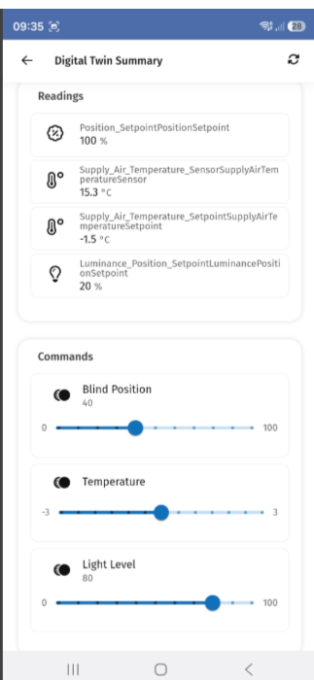
• Selecting a Digital Twin shows:
◦ Information
◦ Readings
◦ Commands (to control connected devices)
Synchronization of readings
• The Mobile IoT module displays the latest synchronized data based on the Digital Twin definition configuration.
• Readings remain unchanged until the user manually refreshes the app (using the Refresh button).
Filtering Digital Twins
In the Digital Twin module, you can filter by:
• Digital Twin definition
For example, selecting AWMCase displays all related Digital Twins.
QR code integration (key feature)
You can quickly access Digital Twin information via QR codes:
1. In the Web Client, open an asset.
2. Click Generate QR code.
3. Scan the QR code using the Planon Live app.
The app prompts you to choose a module:
• Mobile IoT module
• Assets
Selecting the Mobile IoT module:
• Opens the corresponding Digital Twin directly
• Enables immediate access to readings and commands
Example use case: A user scans a space QR code, opens the Mobile IoT module, and adjusts the temperature, controls blinds or adjusts the light level on the spot.
What this enables
• Real-time visibility of Digital Twin data
• Direct interaction with building systems via mobile
• Faster, context-aware actions using QR codes