WebDAV
When enabling OpenID connect for WebDAV, in addition to the configuration mentioned in this article, you must also assign product definitions to the proper user groups.
As of May 1, 2026, WebDAV is configured to use OpenID Connect authentication by default for all new customers.
Product definitions
Please assign the various product definitions for WebDAV to the relevant user(s) or user groups.
The following WebDAV product definitions will be available:
• WebDAV
• WebDAV_Audit
• WebDAV_Backup
• WebDAV_PEET
• WebDAV_TMS
• WebDAV_Webservices
These product definitions will enable you to determine/authorize access to the various WebDAV locations, without the correct product definition the user will not be able to connect the WebDAV location.
To access the WebDAV locations of an environment, you need Cyberduck (minimum version 9) with a custom connection profile.
Connection profile
1. Create one or more custom connection profiles named cloudname-envtype.cyberduckprofile.
Use the content from the example below, replacing the highlighted values with the corresponding values for your own environment. If you use a custom domain, replace the highlighted values and planoncloud.com with your custom domain.
<?xml version="1.0" encoding="UTF-8"?>
<!DOCTYPE plist PUBLIC "-//Apple//DTD PLIST 1.0//EN" "http://www.apple.com/DTDs/PropertyList-1.0.dtd>
<plist version="1.0">
<dict>
<key>Protocol</key>
<string>davs</string>
<key>Vendor</key>
<string>Planon cloudname-envtype</string>
<key>Description</key>
<string>Planon Webdav OIDC for cloudname-envtype</string>
<key>Default Hostname</key>
<string>https://cloudname-envtype.planoncloud.com</string>
<key>Default Path</key>
<string>/webdav</string>
<key>Hostname Configurable</key>
<false/>
<key>Path Configurable</key>
<true/>
<key>OAuth Configurable</key>
<true/>
<key>OAuth Authorization Url</key>
<string>https://cloudname-envtype.planoncloud.com/auth/realms/planon/protocol/openid-connect/auth</string>
<key>OAuth Token Url</key>
<string>https://cloudname-envtype.planoncloud.com/auth/realms/planon/protocol/openid-connect/token</string>
<key>Scopes</key>
<array>
<string>openid</string>
</array>
<key>OAuth Client ID</key>
<string>webdav</string>
<key>OAuth Client Secret</key>
<string>-</string>
<key>OAuth Redirect Url</key>
<string>${oauth.handler.scheme}://oauth</string>
<key>Username Configurable</key>
<false/>
<key>Password Configurable</key>
<false/>
</dict>
</plist>
<!DOCTYPE plist PUBLIC "-//Apple//DTD PLIST 1.0//EN" "http://www.apple.com/DTDs/PropertyList-1.0.dtd>
<plist version="1.0">
<dict>
<key>Protocol</key>
<string>davs</string>
<key>Vendor</key>
<string>Planon cloudname-envtype</string>
<key>Description</key>
<string>Planon Webdav OIDC for cloudname-envtype</string>
<key>Default Hostname</key>
<string>https://cloudname-envtype.planoncloud.com</string>
<key>Default Path</key>
<string>/webdav</string>
<key>Hostname Configurable</key>
<false/>
<key>Path Configurable</key>
<true/>
<key>OAuth Configurable</key>
<true/>
<key>OAuth Authorization Url</key>
<string>https://cloudname-envtype.planoncloud.com/auth/realms/planon/protocol/openid-connect/auth</string>
<key>OAuth Token Url</key>
<string>https://cloudname-envtype.planoncloud.com/auth/realms/planon/protocol/openid-connect/token</string>
<key>Scopes</key>
<array>
<string>openid</string>
</array>
<key>OAuth Client ID</key>
<string>webdav</string>
<key>OAuth Client Secret</key>
<string>-</string>
<key>OAuth Redirect Url</key>
<string>${oauth.handler.scheme}://oauth</string>
<key>Username Configurable</key>
<false/>
<key>Password Configurable</key>
<false/>
</dict>
</plist>
2. Open the created connection profile in Windows Explorer to add it to Cyberduck. This also creates a bookmark automatically.
By default, a bookmark for the WebDAV location is added. When adding the bookmark, specify a custom Nickname and select the Download Folder on your local machine.
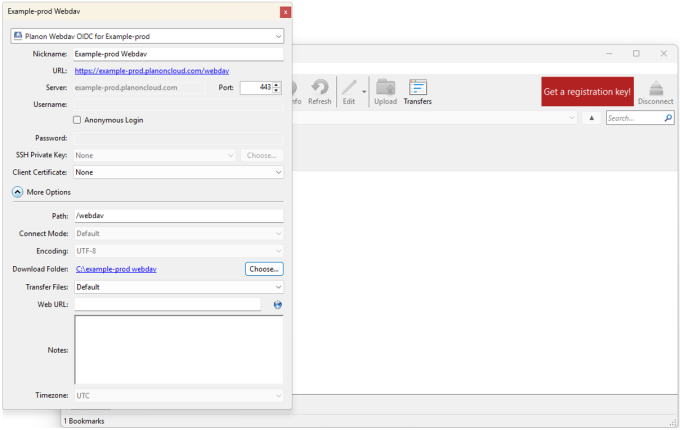
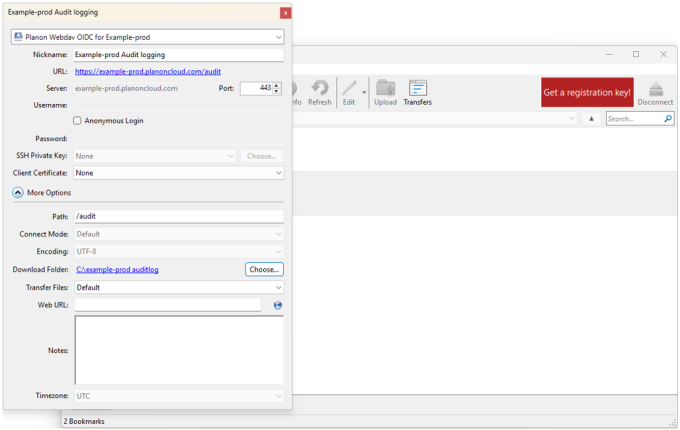
If you want to access any of the other WebDAV locations, change the Path under More Options to the WebDAV location of your choice.
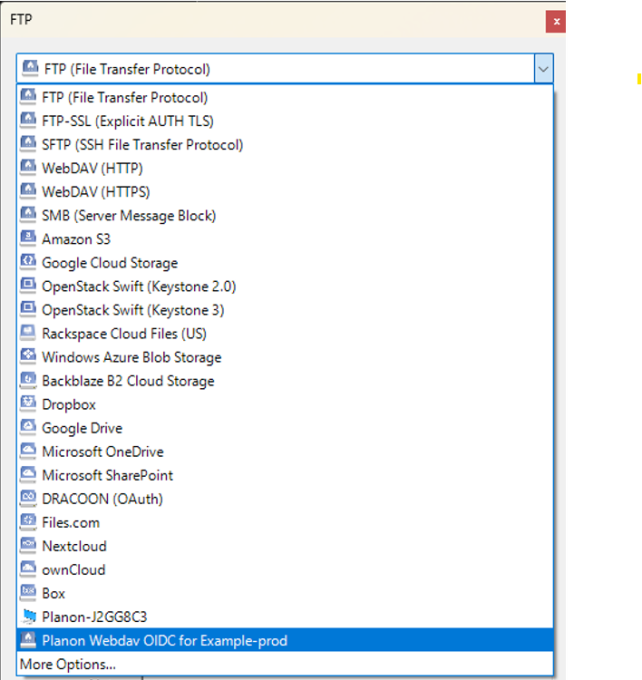
3. If you want to add multiple WebDAV locations, in Cyberduck click Bookmark > New Bookmark, and then select the Planon WebDAV OIDC profile for cloudname-envtype that you created earlier.
4. Add a bookmark accordingly.
5. To add access for another environment, create a new custom connection profile as described earlier, using the correct values for that environment.
For example, if you use both Acceptance and Production, you must create two separate custom connection profiles, each with a unique Vendor and Description value.
After creating the profiles, add bookmarks for each WebDAV location you want to access.
6. After you have added the bookmark(s), you can connect to the WebDAV location. When you connect, you must authenticate with Planon (if you are not already signed in).
Authentication is done using either your Planon credentials or the configured identity provider (Single Sign-On), depending on how your organization has configured the solution.
7. After you have signed in, click Open Cyberduck in the pop-up window to pass the authentication to Cyberduck.
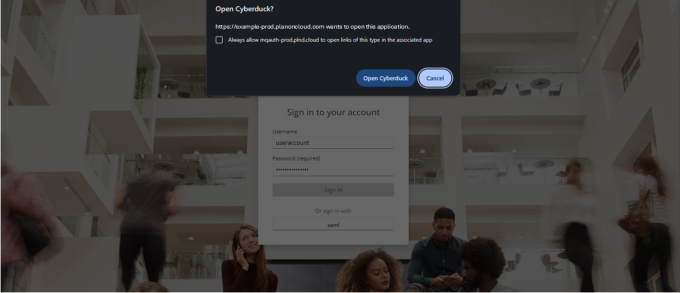
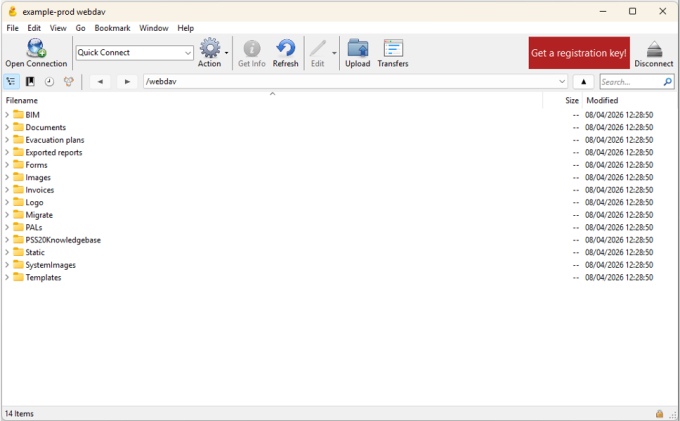
Now Cyberduck will show the content of the WebDAV location.
Troubleshooting in Cyberduck
• 403 Forbidden after successful authentication
Your account is missing the required Product Definition. Ask your Planon administrator to link the correct Product Definition to your user account.
• 401 Unauthorized
Disconnect the WebDAV connection in Cyberduck, and then connect again.