Keycloak
It is possible to configure Keycloak to validate the entered user name and password against the accounts stored in the Planon database.
Having this in place renders a Planon Cloud environment suitable for OpenID Connect authentication without having to use an external authentication source (IDP).
Prerequisites
Before configuring this feature, please note the following requirements:
• This feature is currently only available on Planon Cloud environments.
• The Planon version L92 or later.
Overview
When a Cloud environment is delivered, the following way of authentication is the default configuration.
 | This configuration is also the default on-premise configuration; it uses form authentication for the Planon environment. |
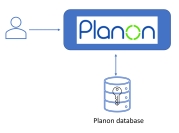
Keycloak
Enabling Single Sign On (SSO) on a Cloud environment introduces Keycloak authentication. Keycloak can be configured to use different authentication sources.
January 1, 2025
On January 1, 2025, Planon User federation will be implemented. Please note that this is release independent (from L92 onwards). By default this automatically applies to newly configured SSO environments.
• Planon User federation applies to new and existing customers.
◦ For existing customers who have configured SSO (in the past), nothing will change.
◦ For existing customers who have not yet configured SSO, this will apply.
◦ For new customers, this automatically applies.
• What it means:
If a customer is using a Planon environment (L92 or later) and enables SSO (Keycloak) after January 1, 2025, the current user passwords will remain working via the Planon User provider in Keycloak.
Keycloak authentication
By default, the authentication via Keycloak is configured as follows.
| | This configuration needs to be adjusted by the customer according to the customer's specific (security) requirements. The default configuration already contains all existing users that are able to log in to Planon. |
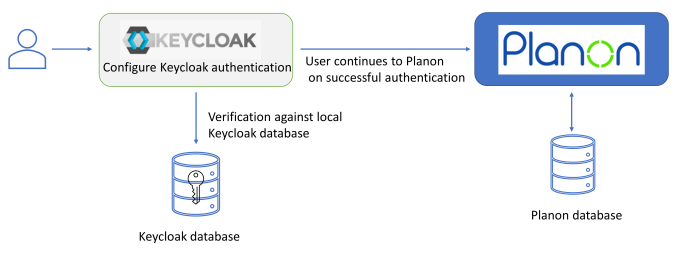
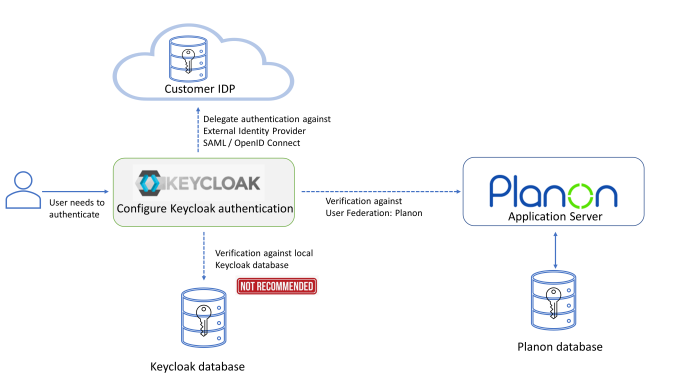
The following diagram shows the possible configuration options for authenticating users.
This includes the configuration that needs to be applied by the customer.
Customer's options
The customer can choose to:
• Add accounts to the Keycloak database for users to authenticate against Keycloak.
 | This is not recommended! |
• Add Planon provider in Keycloak under User Federation (current out-of-the-box-solution).
This way, users authenticate against the account in Planon database via Keycloak
• Add a external IDP under Identity Providers in Keycloak and disable Planon User Federation.
This way, users authenticate only against the external IDP of the customers choice via Keycloak.
| | This is the recommended solution. |
Configuring Planon User federation
Proceed as follows to configure User Federation: Planon.
Procedure
1. Add a Planon provider in the section User Federation of KeyCloak.
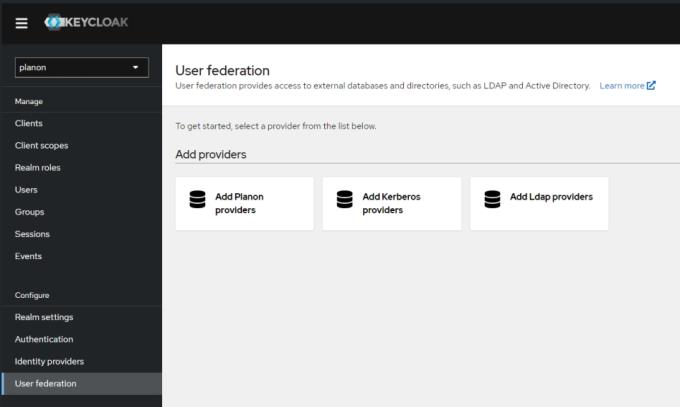
2. Fill out the settings.
In a Planon Cloud environment only the Console display name needs to be entered, all other fields are pre-configured.
Most of them are initialized correctly for Cloud environments so they need not be changed.
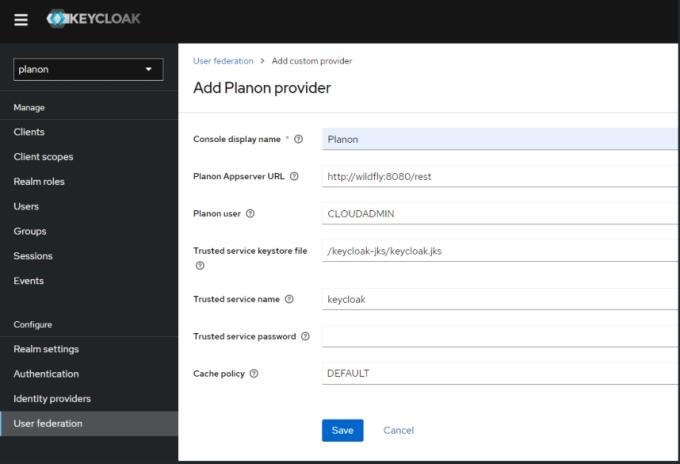
The following table provides a description of the required settings:
Field | Description |
|---|---|
Console display name | The name of the user federation in the Keycloak configuration. |
Planon AppServer URL | The location of the Planon backend that can handle user validation. For Cloud, the default value is fine. |
Planon user | The user that is used to perform queries to the Planon backend. This should be an active user. |
Trusted service keystore file | The user federation uses a trust between Keycloak and the Planon backend. This file contains the keys. For Cloud, you can leave this as is. |
Trusted service name | The user federation uses a trust between Keycloak and the Planon backend. This is the name of that trusted service. For Cloud, you can leave this as is. |
Trusted service password | The user federation uses a trust between KeyCloak and the Planon backend. This field can override the password. For Cloud, you can leave this as is. |
Cache policy | Sets the caching policy. Default should be fine. |
3. Click Save to apply your settings.
A check with the configured backend is carried out to verify that all configured values are correct. When a mismatch is detected, the save will fail and an error with specific error information will be displayed.
If saving is successfull, the user federation is activated.
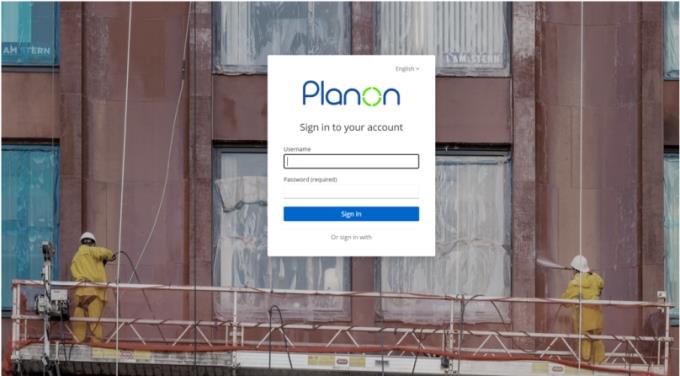
End users can now log in via Keycloak with the user name and password that are stored in the Planon backend.
| | Managing users can still be done through the Planon Accounts TSI. For more information, see the Planon Webhelp. |
Recommendations
• It is not recommended to combine the Planon user federation and Keycloak local password verification. For this reason, we recommend to disable the Update password required action on the authentication section of the Keycloak configuration.
• It is recommended to switch to the OpenID Connect authentication method for applications that support this as is described in Planon Webhelp
Forgot password
Additional configuration is required to be able to use Forgot password functionality together with Planon user federation:
In the Keycloak Administrative console go to the Realms settings configuration and enable Forgot password - do NOT enable login with email as user name.
When Forgot password is activated, each account must have a unique email address linked in the Contact's email address field on the User groups > Settings step.
• If an account does not have a (unique) email address filled in, the user will get a warning screen when logging in to Planon (Email address is not unique or empty. Please contact your system admin to change your email address if you want to use the forgot password functionality.). However, the user can continue to log in to Planon.
• When multiple accounts have the same email address configured, the account that logs in as first will not receive a warning notification, all subsequent users with the same email address configured will see the warning screen.
• After the user's contact email address is updated in Planon, it will be updated in Keycloak the next time the user logs in to the application.
To use the Forgot password functionality:
• The user clicks on the Forgot password link in the Logon screen.
• The user provides the account or email address (matching with the Contact's email address field in Planon).
• An email will be sent to the user containing a link to reset their credentials. This link is valid for 5 minutes. If the link is accessed after it expires, an "Expired Action" error message will be displayed.
Limitations
• Planon user federation is by default only available on Cloud environments.
| | Never unlink users via the Planon User Federation actions, if this is done, all Planon users will no longer be able to access your environment. |