Linking standard activity definitions with contract lines to assets
When you link an asset to a standard activity definition, Planon automatically verifies whether activity definitions already exist for each standard activity included. For complex (non-simple) assets, this verification is performed for each associated location assignment.
 | Before adding a new activity definition, Planon looks for existing ones. It will reuse one if: • the existing activity definition starts on or before the new link start date. • the existing activity definition ends on or after the day before the new link start date. • the existing activity definition is not already linked to another contract line during the same period. If there is more than one match, this is how Planon selects the one to link: 1. Activity definitions with existing links to the same contract line or not linked at all: the activity definition with the most recent start date is used. 2. Activity definitions which have a link to a different contract line: the activity definition with the most recent start date is used. |
After linking a standard activity definition to a contract line, you can link the assets that are covered by the selected standard activity definition. This defines which assets will receive scheduled maintenance or services according to the contractual terms.
Each asset can be linked to one or more standard activity definitions for a specific period. You can specify a start date and an optional end date for each link
Example scenario
• Contract line: Maintenance
• Standard activity definition: AHU Maintenance
• Asset: Mitsubishi Air conditioning
• Start date: 01-JAN-2025
In this example, the air conditioning unit is scheduled for maintenance starting from January 2025, according to the standard activity definition linked to the contract.
| | • What happens if the activity definition already exists and the contract line is Inactive: A warning message is displayed, notifying the user that the new link between the contract line and the activity definitions will be processed once the contract line record is set to Active. • What happens if the activity definition already exists and the contract line is Active: Planon links the existing activity definition to the contract line. If the activity definition’s end date is earlier than the new link’s end date, Planon automatically extends it to ensure both dates are aligned. If the contract line is active and the asset is already linked to another contract line, Planon prompts you to adjust the links to prevent overlap. If you choose not to adjust them, two activity definitions will exist for the same asset. |
Procedure
1. Go to Contracts TSI > Contract line details > Linked activity definitions.
2. In the elements list, select the required contract line linked to the standard activity definitions to which you want to link assets.
3. On the Links action panel, click Link assets.
The Assets (base) dialog box appears.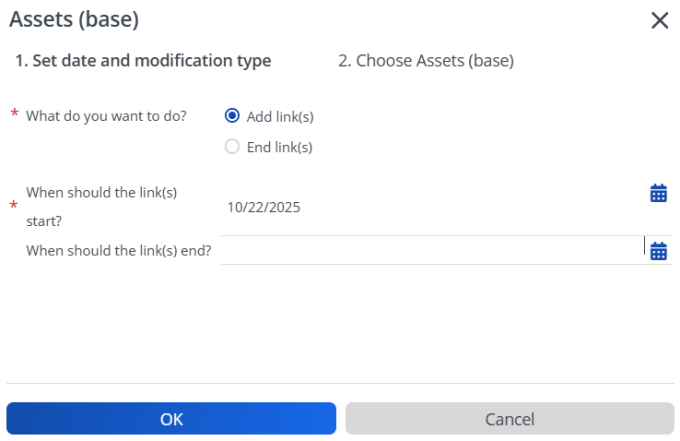
a. In the What do you want to do? field, select Add link(s) or End link(s) as required.
b. Select a date in the When should the link(s) start? field if you have selected Add link(s) in the previous option.
| | • The When should the link(s) start? field can also be filled in for new links. It is used for the end date of new activity definitions and linked contract lines. • When linking a Standard activity definition to a contract line and asset, the start and end dates are automatically prefilled with the contract line dates. These dates can be adjusted if required. |
Updating the start or end date for an Asset–Standard activity definition Link: When you update the start or end date of a link, the changes are reflected in the start and end date of the related contract line. The start and end date of the activity definition are also updated, but only when they match the start and end date of the link.
c. If you selected the option End link(s), then add the end date in the When should the link(s) end? field.
d. Click OK.
The Link asset - Add link(s) dialog box appears.
4. Select the option Standard assets linked to standard activity definition to show only assets relevant for the selected standard activity definition. (Based on the link between standard assets and standard activity definitions).
5. Click the arrow buttons to move assets from Not linked to Linked.
The Not linked section displays the assets available in Planon ProCenter and the Linked section displays the assets already linked to the contract line.
6. Click OK to close the dialog box.
The assets listed in Linked are now linked to the standard activity definition.
| | Service selection is restricted at the Activity Definition level based on the selected contract line. When an activity definition is linked to a contract line, only the services that are defined on that contract line are available for selection. Services not included in the contract line are automatically excluded. |
Alternatively, you can add assets to standard activity definitions via the SLA scopes & activities selection level. To do so:
1. Go to Contracts TSI > SLA scopes & activities selection level.
2. Click Add on the action panel.
3. Enter the required information on the data panel.
For information on field descriptions, see Contract lines with standard service plans - assets fields.
4. Click Save.