Predefined table subreport
The Predefined Table Subreport is a powerful feature available in Planon mail merge reports when using Word (doc, docx) templates.
Introduction
This feature allows you to design and style tables directly within your Word template, providing greater control over the appearance and formatting of subreport data.
You can create a table in your template that includes headers, footers, and custom styling such as outlines, colors, and text formatting (bold, italics) using Word’s native tools. The data from your subreport is automatically merged into this predefined table structure, ensuring that the final report maintains your desired layout and style.
 | This feature only works with Word (doc, docx) templates. |
How it works
1. Create a report definition - in this example a report on Orders with communication logs.
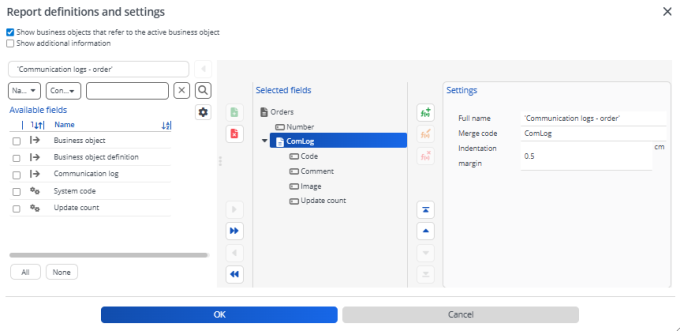
2. Create a table in Word - a table can include a header row, must include at least a data row, and can optionally include a footer row:

◦ The header and footer are free definable by the user.
◦ The TableStart and TableEnd tags must be included in the table row
◦ The tags of the first row cell must include:
- [TableStart:Mergecode of the subreport]
- <merge code of the field in first column>
◦ The tag for the middle fields should include only the <merge code of the field>
◦ The tags of the last row cell must include:
- <merge code of the field in last column>
- [TableEnd:Mergecode of the subreport]
3. Upload your template in System settings > File locations so it can be used in mail merge reports.
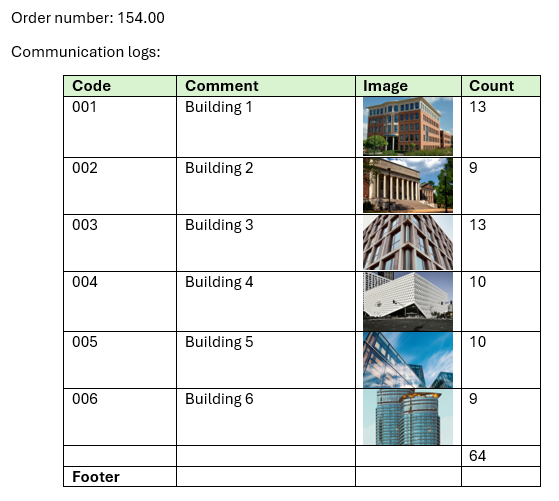
4. When running the report, the structure and styling of the table is maintained. The result will resemble the following:
Restrictions
• TableStart and TableEnd tags have to be in the same row.
• TableStart and TableEnd tags must exist inside a table cell.
• The report definition can only have one subreport level - a subreport within a sub report is not allowed.
• A table can contain only one subreport.
• When on a field Totals under this column is enabled, totals for this field are calculated and a row is added after the last inserted row with the totals.
Pointers
In Word, you can apply various table properties that will affect the outcome, these can be applied by the customer's discretion.
| | The pointers provided refer to Microsoft Word functionality. Planon is not responsible for how Word handles tables or any related behavior. |
• Using sections for each order allows grouping communication logs and customizing page size/orientation.
• Repeat header rows works best when configured via the classic Word Table Layout menu and may require extra rows during setup.
• Page breaks between tables give more control over table placement.
• Not using page breaks/sections lets Word control layout, which may be suitable for simple scenarios.
• Splitting pages into columns can mix before and after tables; for more control, use a base table with two cells (one for each).
◦ Pitfall: Header repetition may not work as expected in nested tables.
• Embedding fonts in templates ensures consistent PDF output but increases file size and upload time.
• For images:
◦ Avoid Automatically resize to fit contents—let row height control image display.
◦ Use Specify height with At least for rows.
◦ Avoid hard returns in tag cells.
◦ Portrait and landscape images will affect table appearance.
• For numeric fields:
◦ Use column totals to add summary rows.
◦ Use column sorting to manage data order.
◦ Use expressions to filter and calculate fields, especially for before/after scenarios.