Opening the graphical planner
Procedure
1. In Projects, go to the Project items selection level.
2. Click the Graphical planner icon ( ).
).
).The planboard opens, displaying all key components.
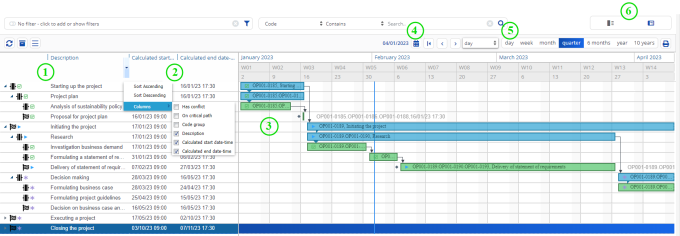
The individual components of the Graphical planner are explained in this table.
Component | Description | |
|---|---|---|
1 | WBS items panel | Displays a hierarchical list of WBS items and subitems. |
2 | Column headers & sorting options | Column headers represent relevant fields of the WBS items. You can configure visible columns and select sorting options using the shortcut menu. |
3 | Planboard interface | The main planning interface where WBS items are visually represented: • Horizontal bars for activities and milestones with non-zero effort (> 0 days). • Diamond symbols for activities and milestones with zero effort (0 days). • Arrows for dependencies, such as Finish-to-Start relationships. • Tasks can be resized or moved by dragging their bars, automatically adjusting dependent tasks. |
4 | Current date and time indicator | A vertical line that marks the current date and time on the planboard timeline. The indicator remains visible during horizontal scrolling to help you stay oriented when reviewing past, current, and future planning. |
5 | Date picker | Allows you to select a specific date to view relevant WBS items. By default, the planboard displays tasks from the current system date. |
6 | Time scale & navigation controls | You can adjust the displayed time period by selecting: • day • week • month • quarter • 6 months • year • 10 years The navigation buttons Previous and Next allow movement along the timeline based on the selected period. |
7 | View selection buttons | Allows you to switch between the Graphical planner view and the Data view for different perspectives on project progress. |