Generating QR codes for personnel
It is possible to generate QR codes that can link a URL to a person. The QR code can be used for:
• Employee ID badges: QR codes on staff badges for quick identity verification.
• Visitor escort verification: Security can scan a staff member's QR code to confirm authorization to escort visitors.
• Temporary access passes: Grant time-limited access to contractors or temporary staff.
Procedure
1. Go to the Personnel selection level.
2. From the list, select one or more persons for whom you want to generate a QR code.
If multiple items are selected, separate QR codes are created for each person.
3. On the action panel, click Generate QR code.
The following screen appears:
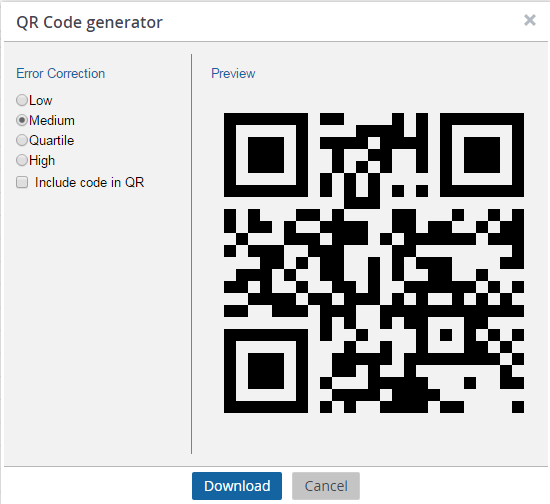
The image size is set to Extra-large by default.
4. Set the Error correction level to Low, Medium, Quartile or High. The error correction level of the QR code depends on what level you select.
 | It is recommended to select Medium. Codes generated in the medium level can be scanned faster by the apps and are good for office environments. |
5. Select the Include code in QR option if you want to include the code in the image.
Select this option only if it is necessary, as the code will be included in the file name of the image anyway. It is recommended to uncheck the Include code in QR option as the dimensions of the image will be disturbed when the code number is included.
A folder named QR-codes-PERSON.zip contains QR-codes.csv file and QR codes, will be downloaded in the downloads folder of your computer. Extract the files from the .zip file to view the generated QR-codes.csv and QR codes.
 | The generated codes are stored in .png extension format and are transparent. It is not possible to choose another file extension. |
The generated QR code looks as follows:

6. Open the QR-codes.csv file to see data of the QR code.