Viewing Health and Safety tabs
You can view a work assignment's applicable Health & safety details, such as:
• Permits
• Risk assessments
• Method statements
• Activity types (work-related activities that may be subject to hazards from the Planon Hazard registry)
• H&S questionnaires
• Hazard types
 | Besides viewing existing hazards, you can also add new hazards. See the procedure. |
• Procedure
1. On the Overview page, select the relevant work assignment.
2. On the Summary page, select the Health & safety block.
3. On the Health & safety details page, navigate to the relevant tab(s).
Health and safety details page (on a mobile phone):
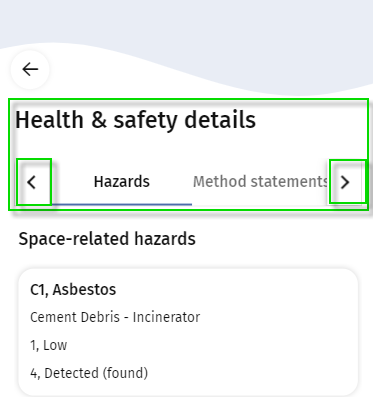
Health & Safety tabs may include Permits, Activity types, Hazards, Method statements, Risk assessments and Questionnaires.
| | • You may have to fill in a Questionnaire before you can start. Other work-related questionnaires may be displayed later, when you select actions like Travel, Temporary fix or Done. Application managers can find information on configuring work-related questionnaires at: Defining a scope for work-related questionnaires. • On the Hazards tab, you can also add a newly discovered hazard to the order. See Adding a hazard via the app for the procedure. • On the Activity types tab, you can link additional, relevant work-related activity types to the work assignment. See Linking work-related activity types via the app. |
4. View the details and select an item to navigate to more specific details, for example Hazard details.
The details might also include linked Images and Documents.