Generating the Contract line commitments report
Please note that the Contract line commitments report only displays values if the contract lines (amounts) included in the report have the status Precalculate, Active, Expired or Terminated, Asset return.
1. In the Contracts TSI, go to Contracts and select the contract that you want to include in the report.
2. Go to .
3. Select the contract line you want to include in your report. You can select only one contract line for this report.
4. On the action panel, click Report.
The Reporting dialog box opens.
5. Click the System reports tab.
6. Select the Contract line commitments report.
For more information on the data displayed in this report, see Contract line commitments report - an overview.
7. Edit the report settings, if required:
◦ Contract currency (Yes) or Functional currency (No): Specify whether you want to display the contract currency (Yes) or the functional currency (No) in the report.
◦ Accounting standard option: In Planon, it is possible to link multiple accounting standards to a contract line. You can specify a primary, secondary and tertiary accounting standard (for more information, see Using multiple accounting standards). The report is generated only for one accounting standard, based on the option you select here: Primary, Secondary or Tertiary.
◦ Cluster by week periods: For 4-4-5 lease accounting, click Yes if you want to cluster the week entries in your report by week periods (as determined by your 4-4-5 calendar). If you click No, the report will display week entries.
8. Select the relevant output options for your report.
Contract line commitments report - an overview
The Contract line commitments system report shows the financial and accounting commitments for contract lines based on lease accounting.
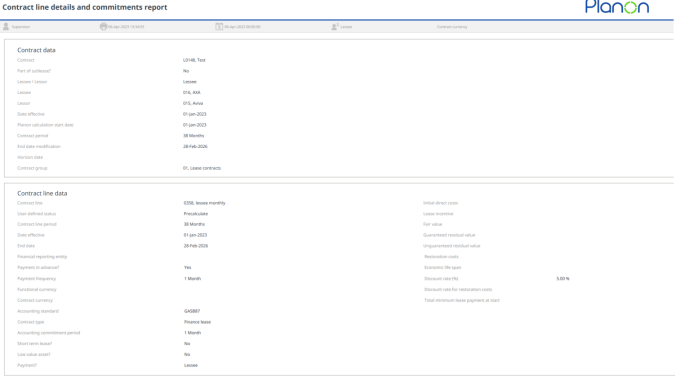
The first section of the report gives an overview of all key data entered by the user.
The second part of the report gives an overview of the following.
• The classification criteria. These criteria are based on the contract line data you entered and on calculations executed by Planon. You can classify a contract line either as operating lease or finance lease. In this report, Planon validates if the classification you defined matches the classification calculated by the system. As long as the contract has the In preparation or Inactive status, no commitments are entered into the system. This allows you to prepare contracts by analyzing the consequences of the current lease settings. You can check the result and change settings, if required. For activated contracts, the report can be used to check the consequences of an amount change.
• The contract options that have been defined. Contract options are taken into account in the calculations.
• All accounting and financial commitments which can be expected for the selected lease line. Accounting commitments are grouped per accounting period. Financial commitments are also grouped per period and are based on the closure date/payment date. The report provides the following information, based on the type of accounting commitment:
◦ accounting commitments for operating lease show the expenses and (cumulative) lease accrual
◦ accounting commitments for finance lease show the interest, liability, net movement and depreciation
 | For a lessor, the report shows the income, deferred rent and net movement. |
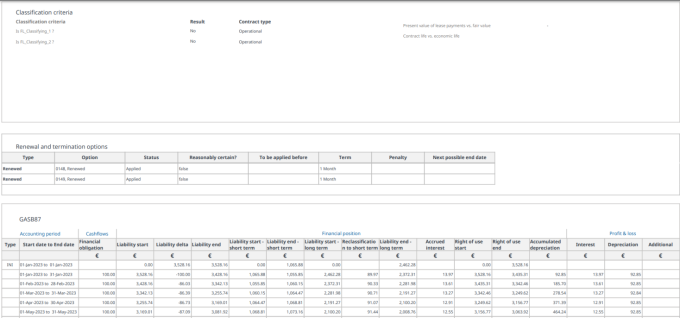
| | The Type column indicates the type of accounting commitment, for example the code INI stands for 'initial accounting commitment'. See the legend in the report itself for an explanation of the different codes. |
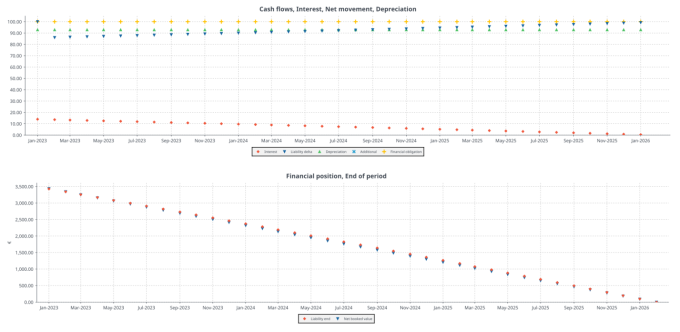
The last section of the report shows a graphical representation of the data displayed above.
| | You can only run the Contract line commitments report for lease accounting contract lines and only for one contract line at a time. If you generate a report on inactive contract lines for which percentage-based indexation is defined, the indexation is applied and taken into account in the initial calculations. If a contract line has been terminated early, Planon creates a record to settle the costs due to this early termination. |