Customizing theme display names
Planon provides several built-in themes — including Light, Dark, High contrast, and two customizable variants (Custom Light and Custom Dark). By default, these themes are shown to end users with generic display names such as Custom Light Theme and Custom Dark Theme. For organizations that use branded or customized themes, these default names may not be meaningful to their users.
Customization
To give end users a more recognizable experience, administrators can configure custom display names for themes through the Languages TSI.
By exporting a language file, modifying the relevant translation keys, and re-importing the file, you can replace the default theme names with labels that better reflect your organization's branding. Because this is handled through the translation framework, theme names can also be localized per language.
Example using Translation Wizard
1. Go to Languages, select your language and click Export language
2. In the next step, select to Export system translations.
For the issue at hand, it is not necessary to export additional items.
3. Click Nex mandatory step to start the export process.
This will export the system translations.
4. Once the export is ready, extract the zipped files and open SystemElements.json (using a text editor)
5. Look for the following entries:
rPss.FrameUI.label.customDarkTheme
rPss.FrameUI.label.customLightTheme
rPss.FrameUI.label.darkTheme
rPss.FrameUI.label.highContrastTheme
rPss.FrameUI.label.lightTheme
SystemCode.USER_SETTING_THEME.1
SystemCode.USER_SETTING_THEME.2
SystemCode.USER_SETTING_THEME.3
SystemCode.USER_SETTING_THEME.4
SystemCode.USER_SETTING_THEME.5
rPss.FrameUI.label.customLightTheme
rPss.FrameUI.label.darkTheme
rPss.FrameUI.label.highContrastTheme
rPss.FrameUI.label.lightTheme
SystemCode.USER_SETTING_THEME.1
SystemCode.USER_SETTING_THEME.2
SystemCode.USER_SETTING_THEME.3
SystemCode.USER_SETTING_THEME.4
SystemCode.USER_SETTING_THEME.5
and edit the display names as required (translationText).
6. Save the file and zip it together with package_info.json.
7. Go to Languages > Import translation
8. Select the zip file and select to Overwrite user translations.
Complete the import wizard steps.
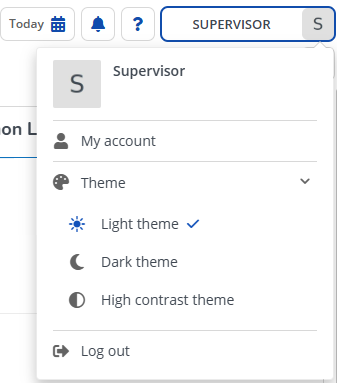
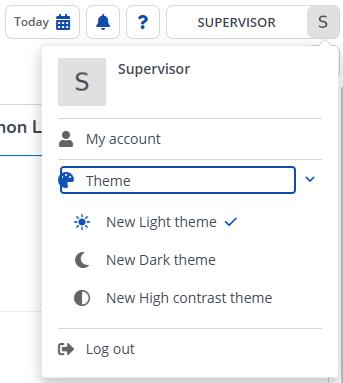
9. When completed, log out and log in. Click the User account name > Theme, the display names reflect the new names.
 | This following example illustrates renaming the display names of default themes. The same procedure applies to custom themes. |
Before import | After import |
|---|---|
 |  |